
Mozilla Thunderbird is a free and open-source cross-platform email client, personal information manager, news client, RSS and chat client developed by the Mozilla Foundation.
You can download Mozilla Thunderbird here: https://www.thunderbird.net/es-ES/
- Open Mozilla Thunderbird.
- Click Tools or click the Application menu button.

- Select Account Settings.
- At the bottom of the left pane, click Account Actions.
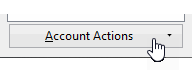
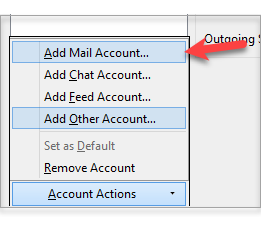
- Select Add Mail Account.
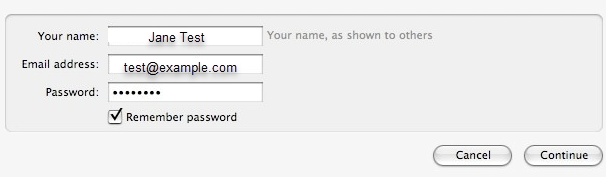
- Enter your email account details and press Continue.
- Your Name: How you want your name to appear in emails (example: Jane Test)
- Username/Email Address: Your full email address (example: test@example.com)
- Password: Your email password
- Remember password: We recommend that you keep this checked
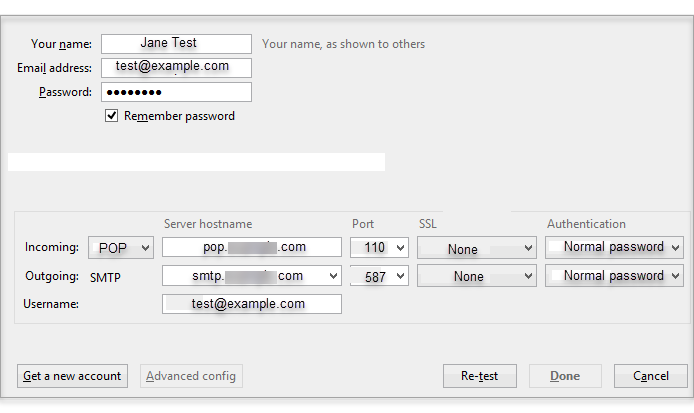
- Press Manual Configuration and edit the server names, ports, and IMAP/POP to manually set up the account. IMAP synchronizes the email on your computer with the contents of your account on the server, while POP simply downloads the inbox.
- Fill in the following information depending on the incoming protocol you chose:
- POP
- Outgoing Authentication: We recommend Normal password
- Outgoing SSL: Your preference. If you choose SSL/TLS, change the Outgoing Port to 465
- Outgoing Port: 587
- Outgoing Server Hostname: smtp.powweb.com
- Incoming Authentication: We recommend Normal password.
- Incoming SSL: Your preference. If you choose SSL/TLS, change Incoming Port to 995.
- Incoming Port: 110
- Incoming Server Hostname: pop.powweb.com
- Incoming (Type): POP
- Password: Your mailbox password
- Username/Email Address: Your full email address (example: test@example.com)
- Your Name: How you want your name to appear in emails (example: Jane Test)
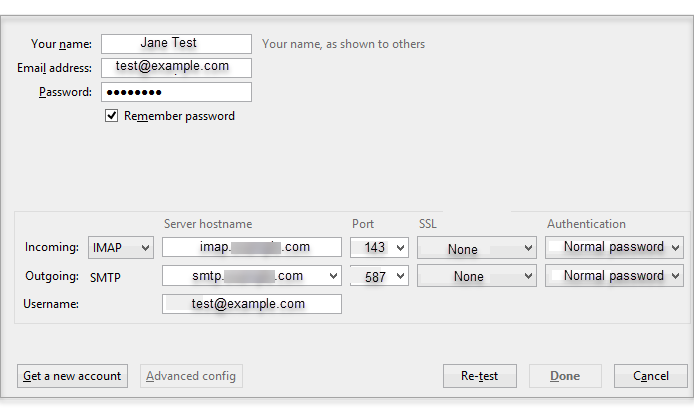
- IMAP
- Your Name: How you want your name to appear in emails (example: Jane Test)
- Username/Email Address: Your full email address (example: test@example.com)
- Password: Your email password
- Incoming (Type): IMAP
- Incoming Server Hostname: imap.powweb.com
- Incoming Port: 143
- Incoming SSL: Your preference. If you choose SSL/TLS, have the incoming server, and port reflects their appropriate SSL settings.
- Incoming Authentication: We recommend Normal password.
- Outgoing Server Hostname: smtp.powweb.com
- Outgoing Port: 587
- Outgoing SSL: Your preference. If you choose SSL/TLS, have the outgoing server, and port reflects their appropriate SSL settings.
- Outgoing Authentication: We recommend Normal password
- POP
- Click Create Account.
- Wait for the mail client to finish verifying the email settings.

